Erase what the AI missed.
The AI does the boring part. Then a big, friendly brush lets you erase what’s left of the background or paint back what went missing.
Your photos are not stored. Each one is cut out and forgotten right away.
- Waiting in line…
- Cutting out…
- Lots of photos at once. Pausing a few seconds…
- This isn’t a picture we can read. Try JPG, PNG, WebP or HEIC.
- This file is over 20 MB.
- The service is overloaded right now. Please try again a bit later.
- Too many photos at once. Try again in a minute.
- You’ve hit today’s limit. Come back tomorrow.
- We couldn’t read this image. It may be damaged.
- We couldn’t confirm you’re human. Reload the page and try again.
- Something went wrong. Try again.
- Couldn’t prepare the file. Try again or pick another format.
- Your browser can’t copy images. Use Download instead.
- Copied. Paste it anywhere.
- Up to %n photos at a time. The rest were skipped.
- %n of %t ready
- cutouts.zip

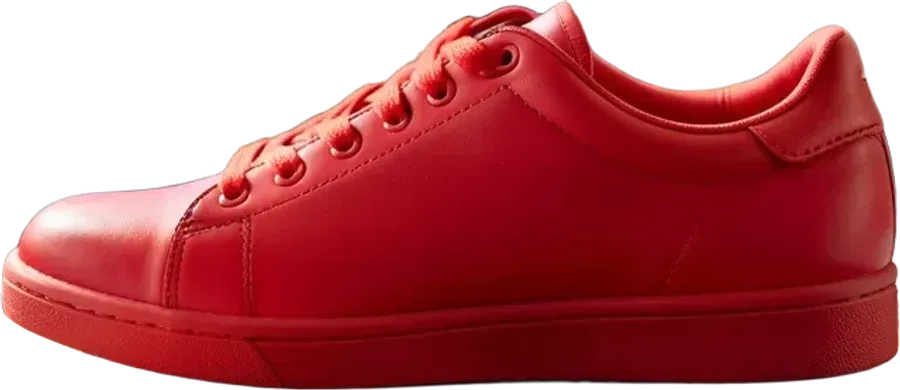

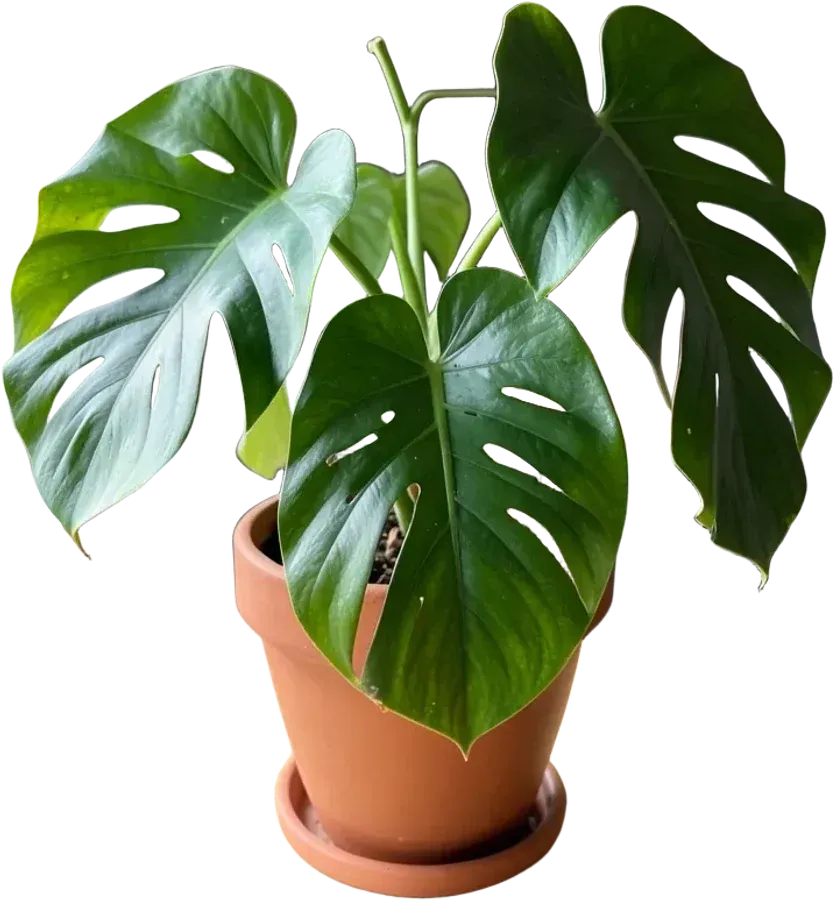
How the eraser works
AI goes first
Drop a photo and the background is removed automatically. The eraser opens right after.
Erase or restore
Erase removes leftovers like a corner of a table. Restore brings back a lost hand or a strand of hair from the original.
Done
Your strokes are kept on the card. Download, add a background colour, or open Fix again later.
Tips for a clean erase
- Use the large brush for big areas and switch to the small one near the edge of the subject.
- Restore is safe. It only brings back pixels from your own photo, so you can paint loosely and erase the extra.
- Check on a colour. Leftovers hide on the checkerboard; put a black or bright background behind the cutout to spot them.
- Edges stay soft. The brush has a smooth rim, so erased edges don’t look jagged.
Questions people ask
Do I have to erase the whole background by hand?
No. The AI removes the background first, then the eraser opens so you only fix what it missed. Most photos need a few strokes or none.
I erased too much. Can I bring it back?
Yes. Switch the brush to Restore and paint over the missing part; the original pixels come back. Undo and Redo work too, including Ctrl+Z.
How do I see what the photo looked like?
Press and hold “Hold to see original” in the editor. On the result card, slide the compare control to reveal the original.
Does the eraser work on a phone?
Yes. Paint with your finger; the brush sizes are large enough for touch screens.
Is the background eraser free?
Yes. There is no signup and no watermark on the download.